Browser mockups
Turn a website screenshot into a browser mockup
Show a landing page, dashboard or web app inside a clean browser window instead of sharing a raw crop. ShotGenio adds light or dark browser chrome, then lets you place the result on a gradient, photo or motion background sized for your post.
Make a browser mockupFree to start. No card needed.
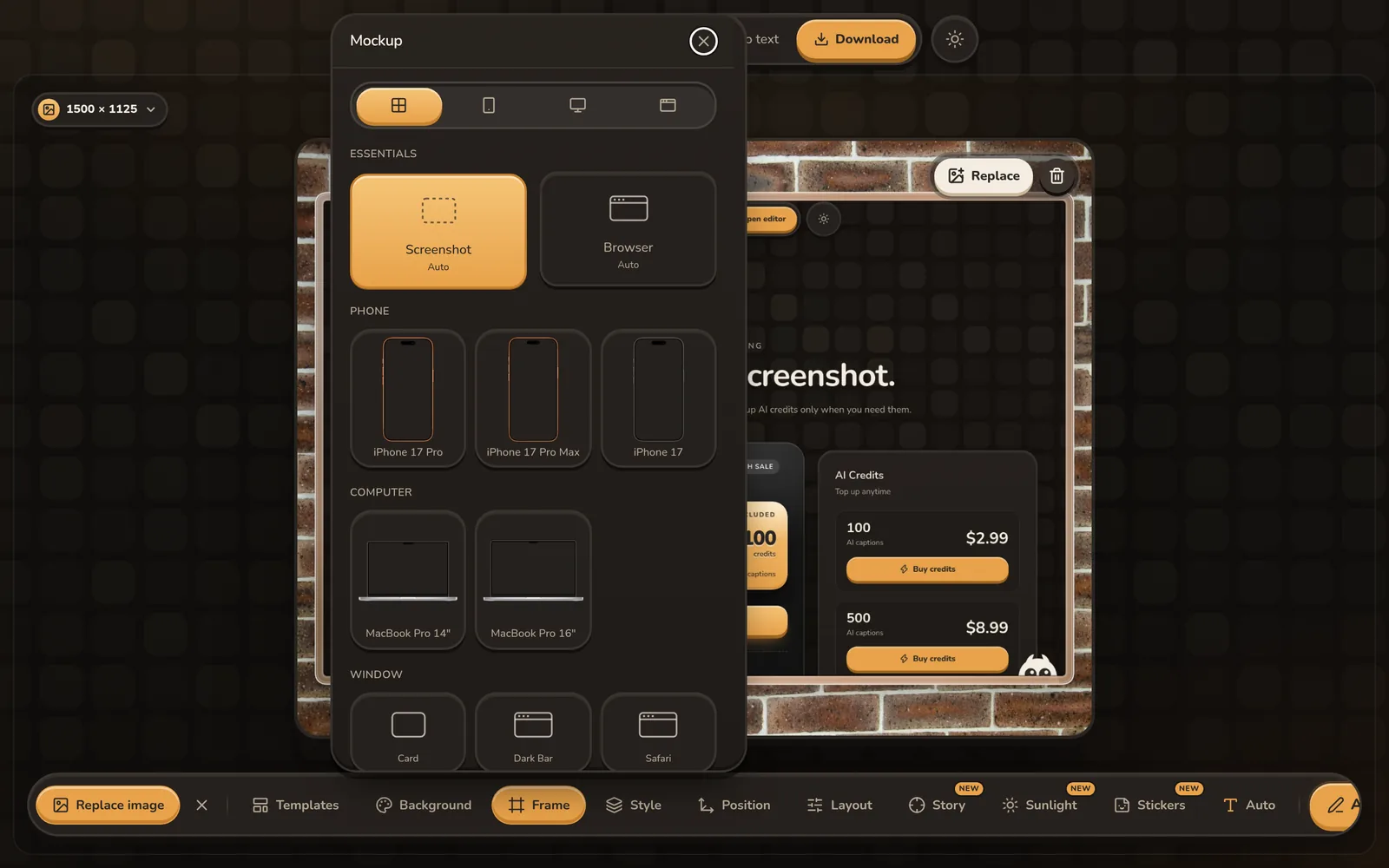
How to make a browser screenshot mockup
- 1
Add a website screenshot
Upload a screenshot or capture and crop the visible browser tab with the Chrome extension.
- 2
Choose the browser frame
Apply a light or dark browser bar and adjust the screenshot position and corners.
- 3
Style and export
Add a background, shadow, annotation or social preset, then download the browser mockup.
Browser mockup features
Light browser frame
Give bright websites and product screens a clean, familiar browser-window edge.
Dark browser frame
Frame dark dashboards, developer tools and night-mode interfaces without a bright border.
Website capture workflow
Use the Chrome extension to capture and crop the visible tab before opening it in the editor.
Backgrounds and shadows
Separate the website from the canvas with gradients, photos, padding and a soft shadow.
Annotations
Point to a feature with arrows, text, highlights, shapes or numbered steps.
Social and video export
Choose a platform size and export as PNG, JPG, WebP, GIF, MP4 or WebM.
Questions
What is a browser mockup?
A browser mockup places a website screenshot inside a browser-style window so viewers immediately recognize it as a web page or web app.
Can I choose a light or dark browser frame?
Yes. ShotGenio includes both light and dark browser styles.
Can I capture the website first?
Yes. The Chrome extension captures the visible part of the current tab and lets you crop it before editing.
Can I make an animated browser mockup?
Yes. Add a motion background or sunlight overlay and export as GIF, MP4 or WebM.
See pricing: free, or $4.99 once for the Lifetime Editor.