Website screenshots
Make polished website screenshots for sharing
Present a landing page, dashboard or web app as a clear product graphic instead of posting a raw browser capture. Capture and crop the visible page or upload an existing image, then add a browser frame, background, annotations and an exact social-media size.
Make a website screenshotFree to start. No card needed.
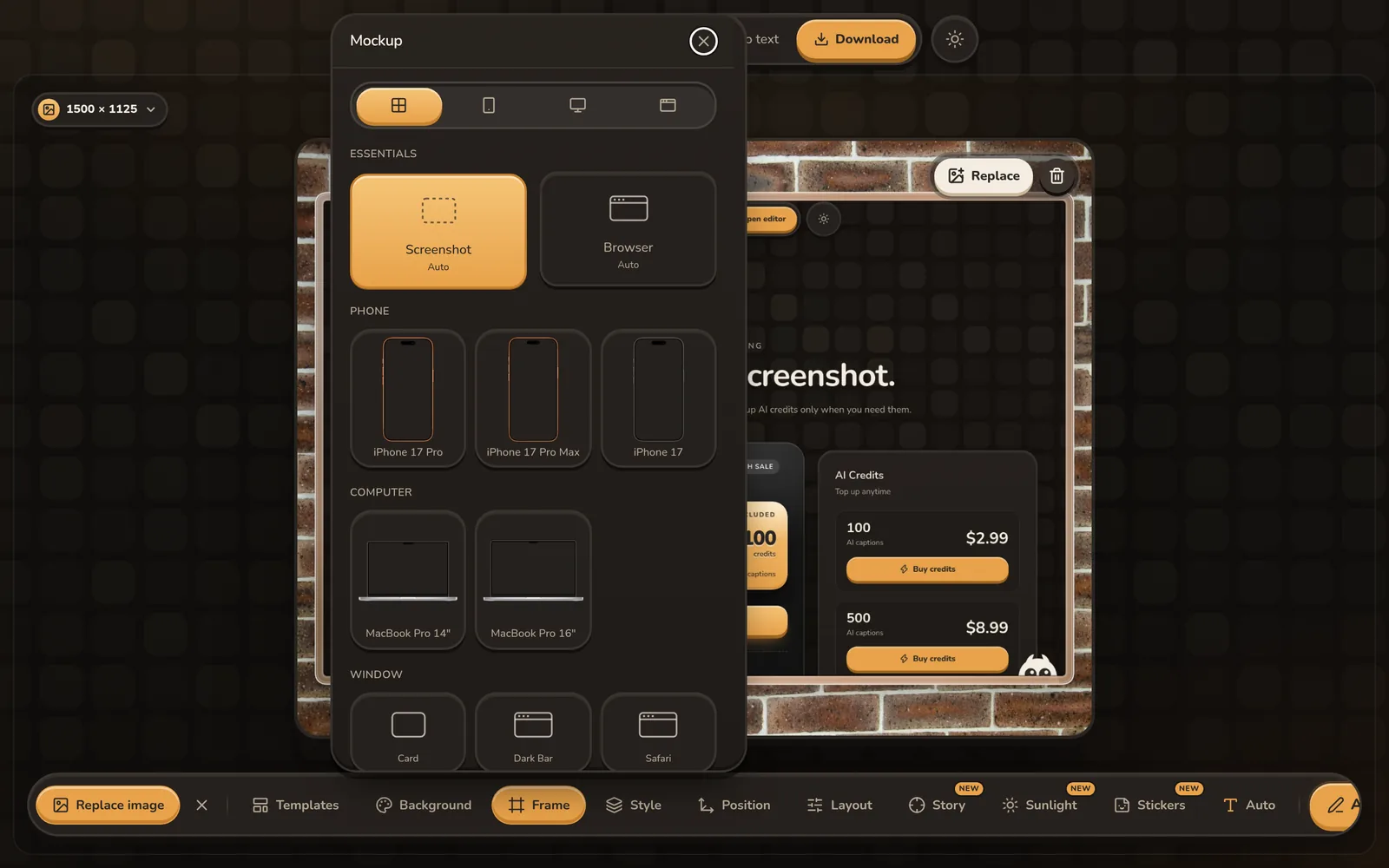
How to make a website screenshot
- 1
Capture or upload
Use the Chrome extension to capture and crop the visible tab, or upload an existing website screenshot.
- 2
Present the website
Add a light or dark browser frame, background, spacing, rounded corners and a shadow.
- 3
Explain and export
Mark important details with annotations and download the image at the size you need.
Website screenshot presentation tools
Visible-page capture
Capture the visible browser tab and crop the exact area you want to present.
Browser frames
Place the website inside clean light or dark browser chrome.
Feature callouts
Add arrows, text, highlights, shapes and numbered steps to explain the interface.
Private-data redaction
Blur or pixelate account details, customer data and other sensitive areas.
Background styling
Use gradients, photos, wallpapers, textures or motion behind the website.
Publishing sizes
Export for X, Instagram, LinkedIn, YouTube, Product Hunt or a custom presentation.
Questions
How do I make a website screenshot look professional?
Crop the useful part, place it in a browser frame, add consistent spacing and a background, then use a subtle shadow to separate it from the canvas.
Can ShotGenio capture a full scrolling website?
No. The Chrome extension captures the visible part of the current tab. You can crop that capture or upload a screenshot made with another full-page tool.
Can I annotate a website screenshot?
Yes. Add arrows, text, shapes, highlights, numbered steps, blur and pixelation.
Can I export a website screenshot as video?
Yes. Add a motion background or animated overlay and export as GIF, MP4 or WebM.
See pricing: free, or $4.99 once for the Lifetime Editor.